Podcast Setup Tutorial
Go from zero to a published podcast in under five minutes. This guide walks you through every step.
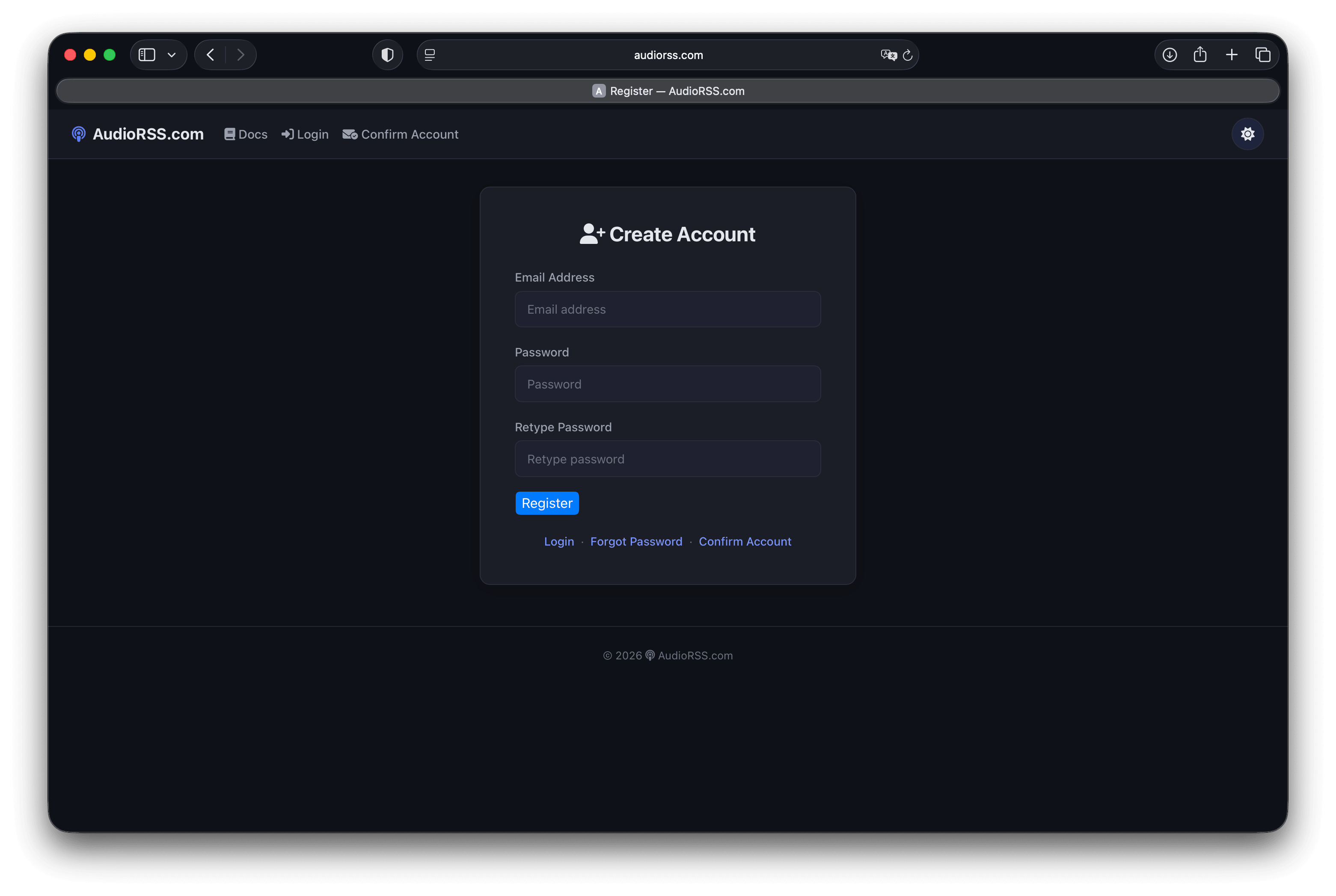
Step 1: Create Your Free Account
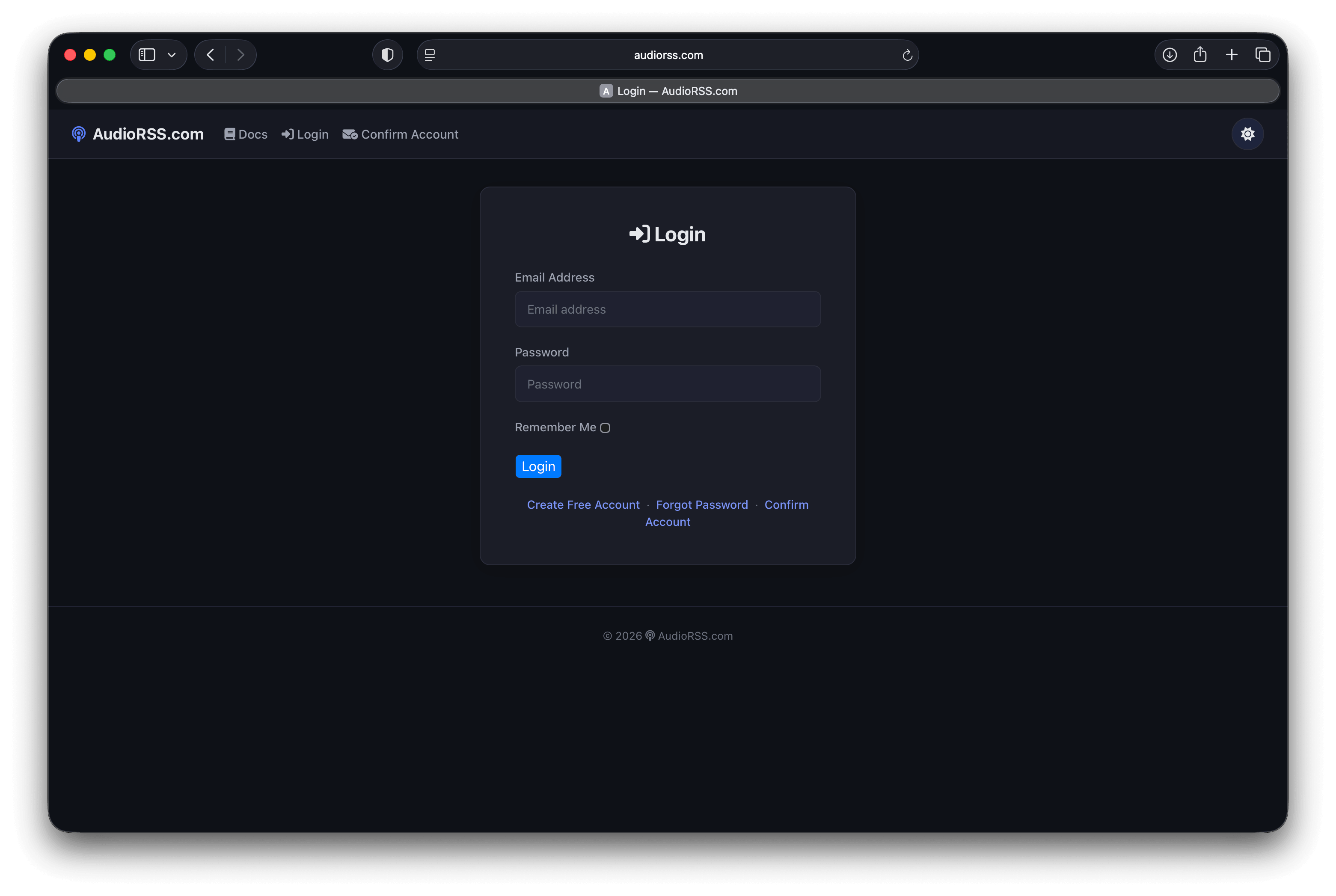
Head to the registration page and sign up with your email address and a password. You'll receive a confirmation email — click the link to activate your account, then log in.
Step 2: Create a Podcast Feed
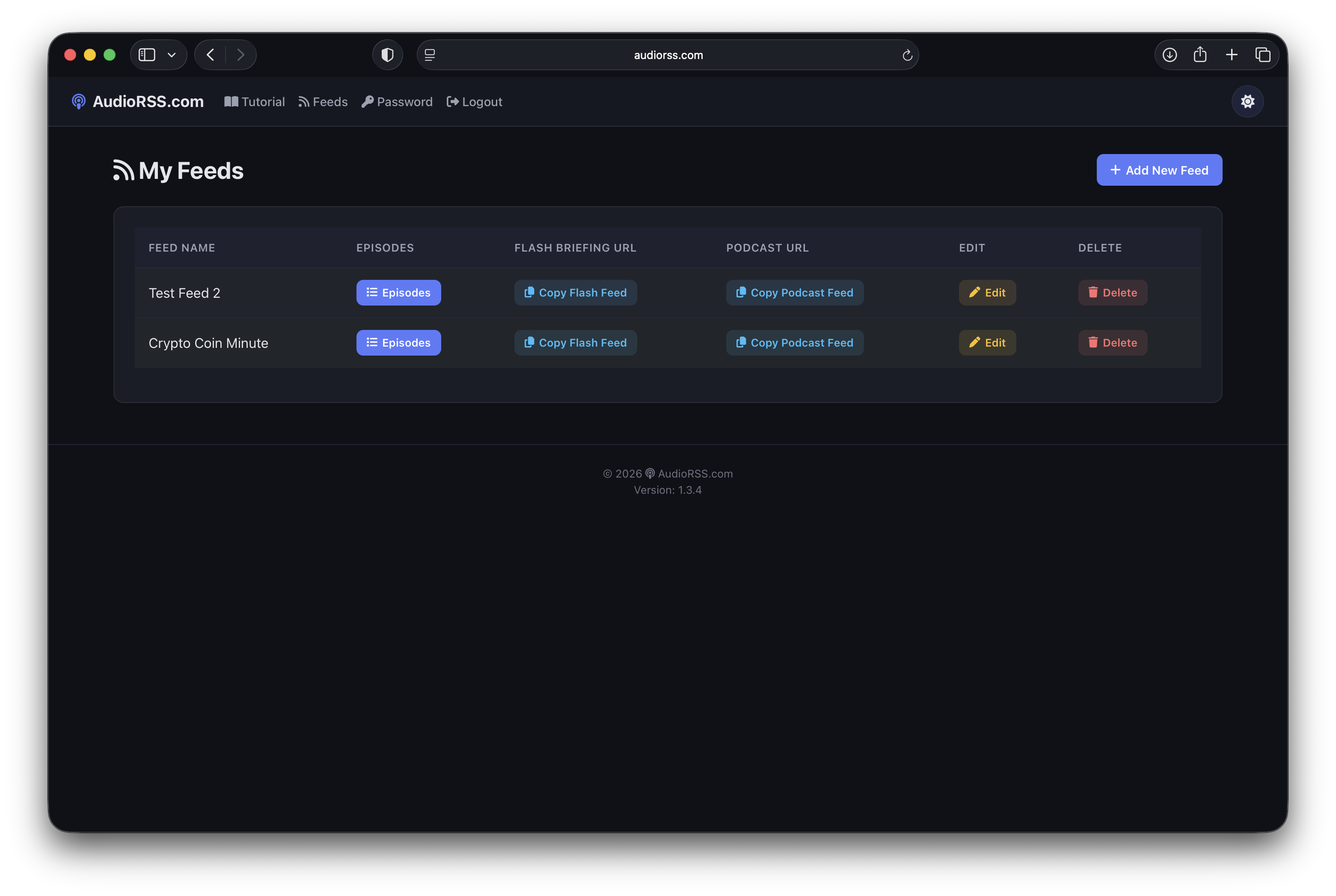
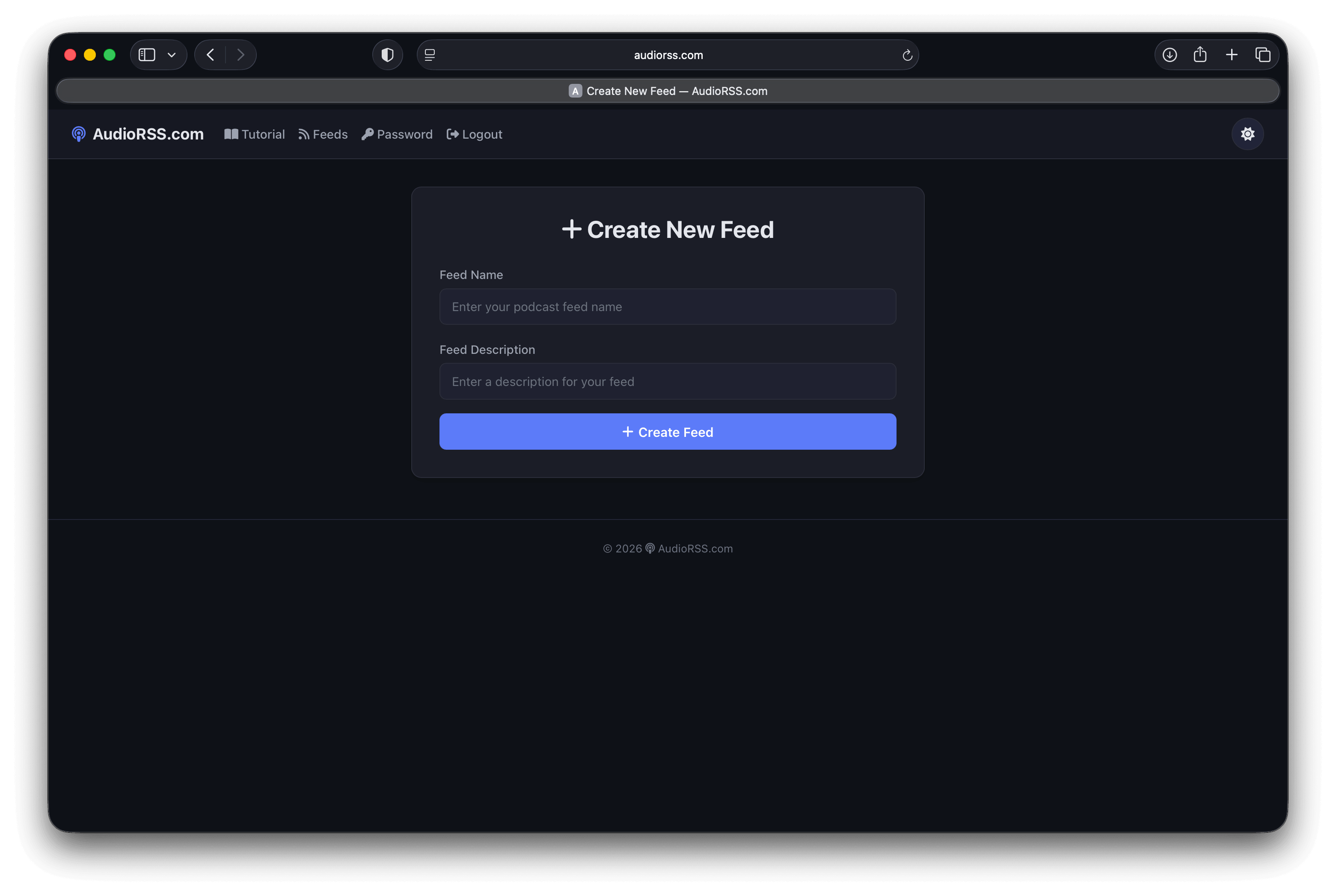
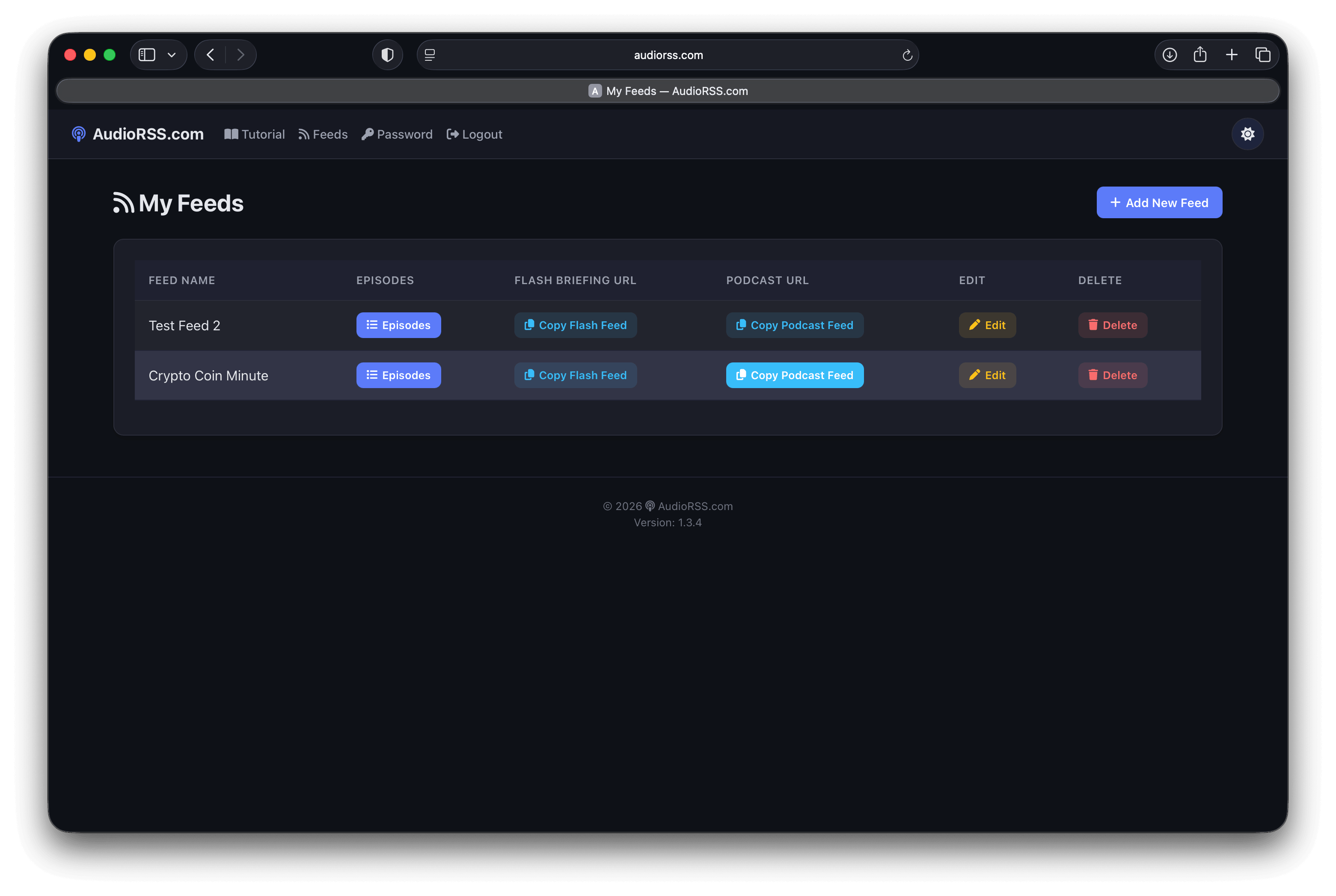
After logging in, click Feeds in the navigation bar to go to your feeds dashboard. Click the Add New Feed button in the top right.
Enter a Feed Name (your podcast title) and a Feed Description (a short summary of what your podcast is about), then click Create Feed.
Step 3: Copy Your Feed URLs
Back on the My Feeds page, you'll see your new feed listed in the table. Each feed has two URLs you can copy:
- Copy Podcast Feed — Your RSS feed URL for Apple Podcasts, Spotify, and other podcast directories.
- Copy Flash Feed — A JSON feed URL for Amazon Alexa Flash Briefings.
Click either button and the URL is copied to your clipboard, ready to paste.
Step 4: Add Your First Episode
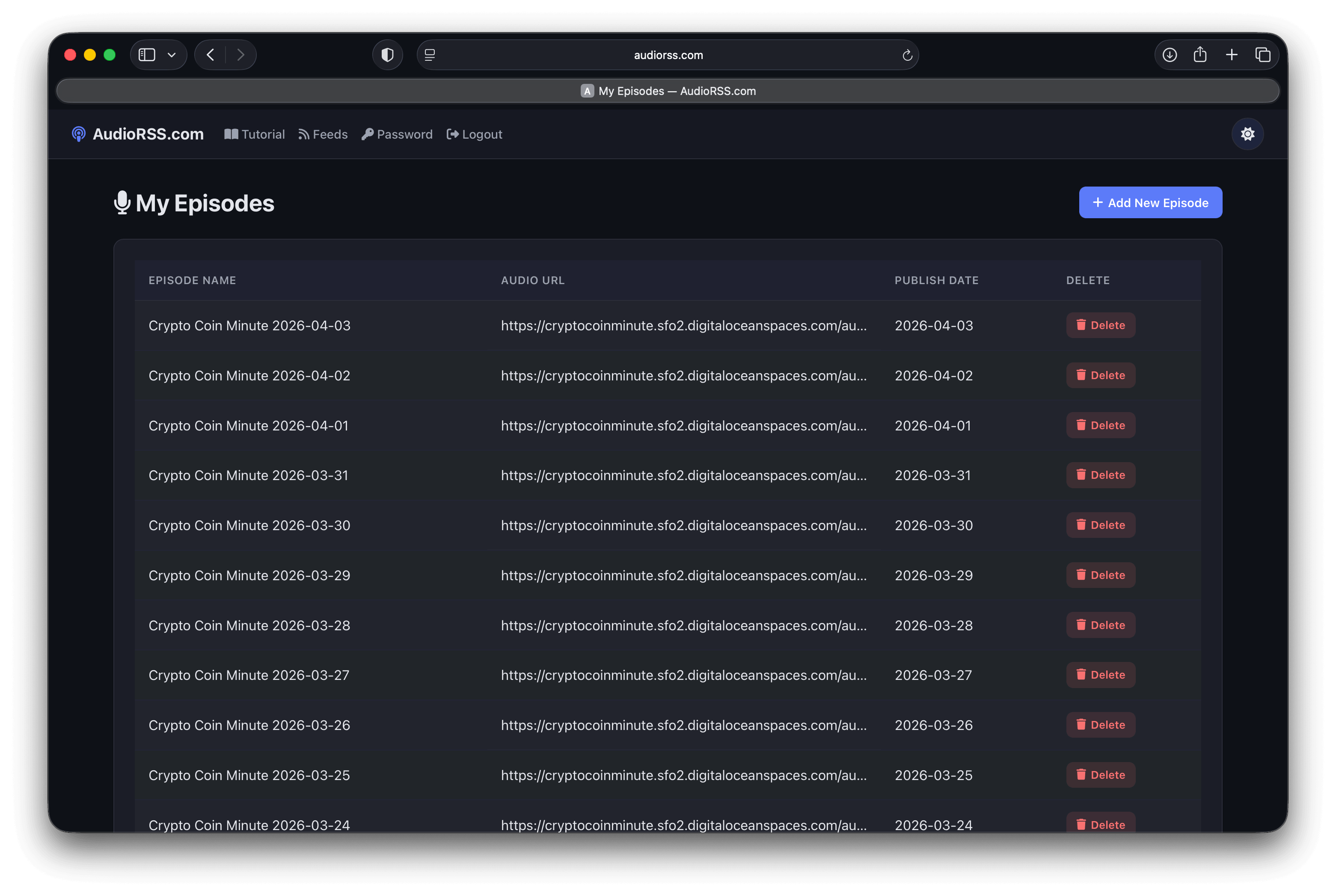
Click the Episodes button on your feed row, then click Add New Episode.
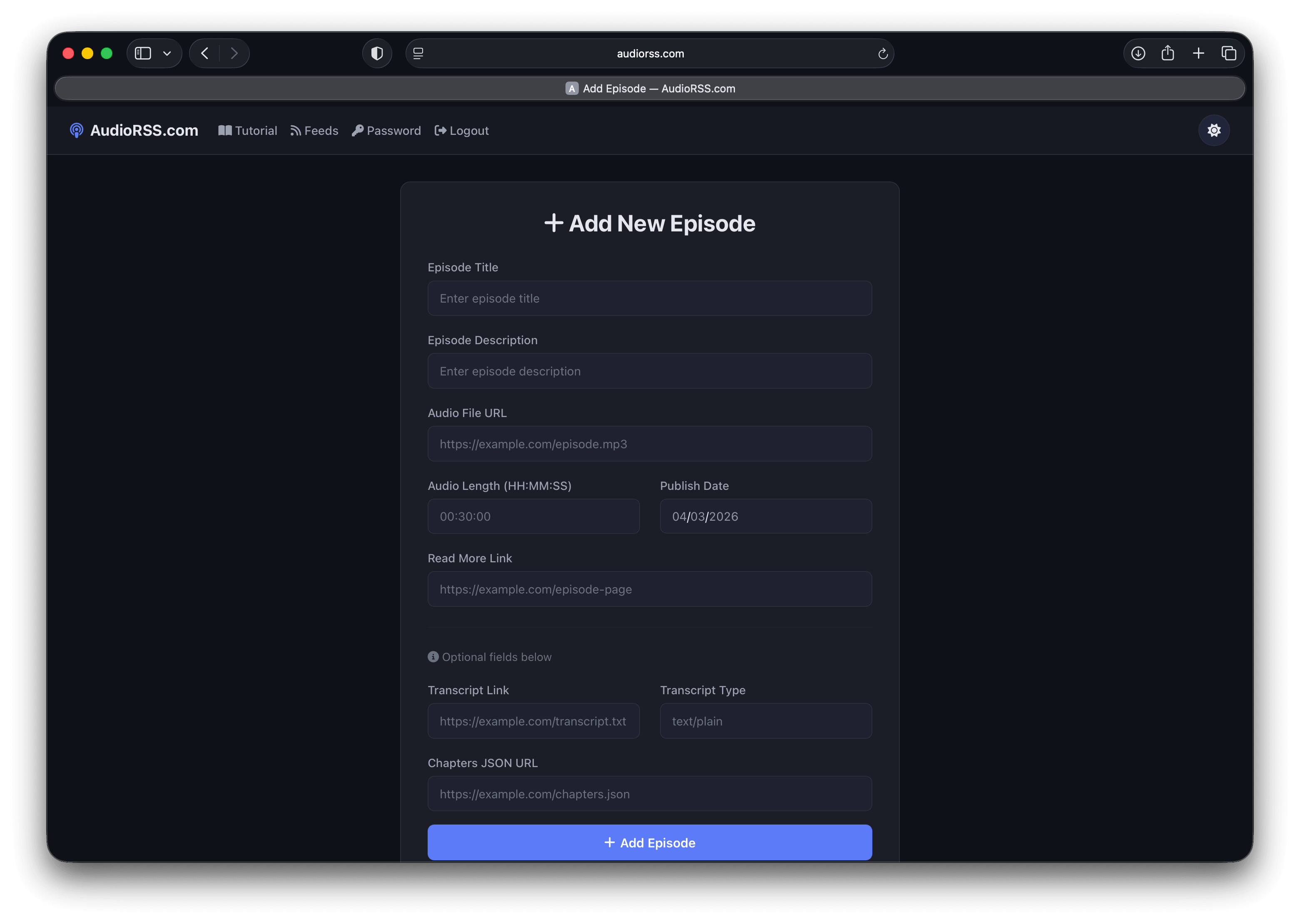
Fill in the required fields:
- Episode Title — The name listeners will see.
- Episode Description — A summary or show notes (HTML supported).
- Audio File URL — The direct link to your hosted MP3 file (e.g.
https://your-cdn.com/episode1.mp3). - Audio Length — Duration in
HH:MM:SSformat. - Publish Date — When the episode should appear in the feed. Use a future date to schedule ahead.
- Read More Link — A webpage URL with more info about the episode.
Optionally, you can also add a Transcript Link, Transcript Type, and Chapters JSON URL for enhanced podcast features.
Click Add Episode to publish.
Step 5: Submit to Podcast Directories
Now that you have at least one published episode, submit your Podcast Feed URL to directories so listeners can find you.
Apple Podcasts
- Go to Podcasts Connect and sign in with your Apple ID.
- Click the "+" button to add a new show.
- Paste your AudioRSS Podcast Feed URL and click Validate.
- Review the preview and submit. Apple typically approves new podcasts within 24–48 hours.
Spotify
- Go to Spotify for Podcasters and sign in.
- Click Add your podcast and paste your AudioRSS Podcast Feed URL.
- Verify ownership and submit. Your show typically appears within a few hours.
Amazon Alexa Flash Briefing
- Go to the Alexa Developer Console.
- Create a new Flash Briefing skill.
- Paste your AudioRSS Flash Briefing Feed URL as the feed endpoint.
- Submit the skill for certification.
Step 6 (Optional): Automate with the API
If you want to publish episodes programmatically — for example, from a script that generates daily audio — you can use the AudioRSS REST API instead of the web dashboard.
Send a POST request to /api/add_episode with your credentials and episode data as JSON:
{
  "username": "[email protected]",
  "password": "your_password",
  "feed_id": "your-feed-uuid",
  "title": "Episode Title",
  "description": "Episode description",
  "audio_url": "https://your-cdn.com/episode.mp3",
  "audio_length": "00:30:00",
  "publish_date": "2025-01-15",
  "read_more_url": "https://example.com"
}
See the Documentation for full API details and optional fields.
Note: There may be slight delays with Apple Podcasts and other directories updating their indexes, which is outside our control. Subscribers will receive your new episodes, but they may take a few minutes to an hour to appear in search and browse.